
TixCraft ticket BOT guide
Detailed function and usage guide
When you enter TixCraft, you will see the TechTickBot control panel on the left.
* If the panel is hidden, click Expand Settings on the left.
Auto select price area
- Run auto price selection: check to enable auto area selection.
- Price input: enter price keywords separated by English commas. The system matches in order.
Matching method: contains match. If the area text contains your input string, it can match.
Examples:
3800, 2800— 3800, 2800 — matches areas like Special A NT$3,800 or Rock Zone $2,800特A, 特B— Special A, Special B — match by area name搖滾, 2980— Rock, 2980 — try Rock first, then 2980 if not found
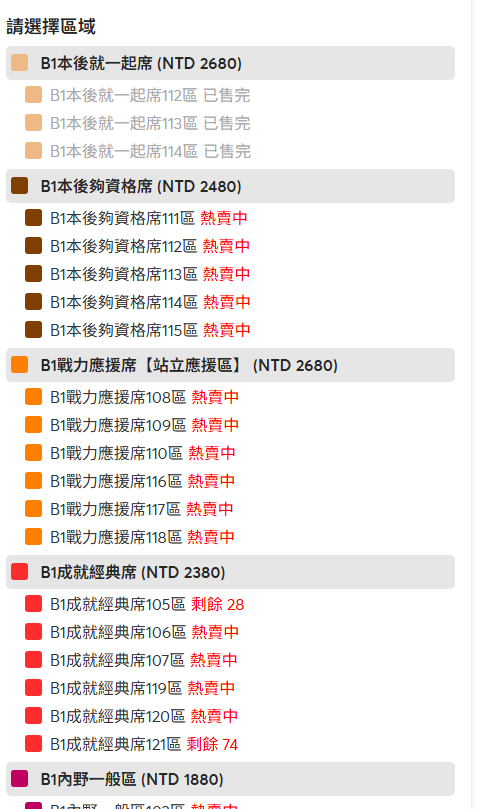
Choose area: price and status (on sale / sold out / remaining) (click to enlarge) 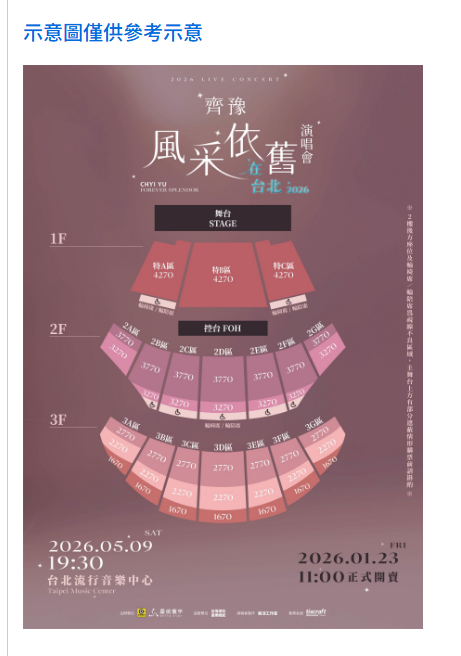
Seat map and area prices. Use this to enter price keywords (click to enlarge) - Auto refresh when price not found: if checked, the system refreshes after 5 seconds when no matching area exists.(If “Your Browsing Activity Has Been Paused” appears, the system also refreshes after 5 seconds.)
Auto click Order Now
- Auto click Order Now: when checked, the event list page clicks the order button automatically.
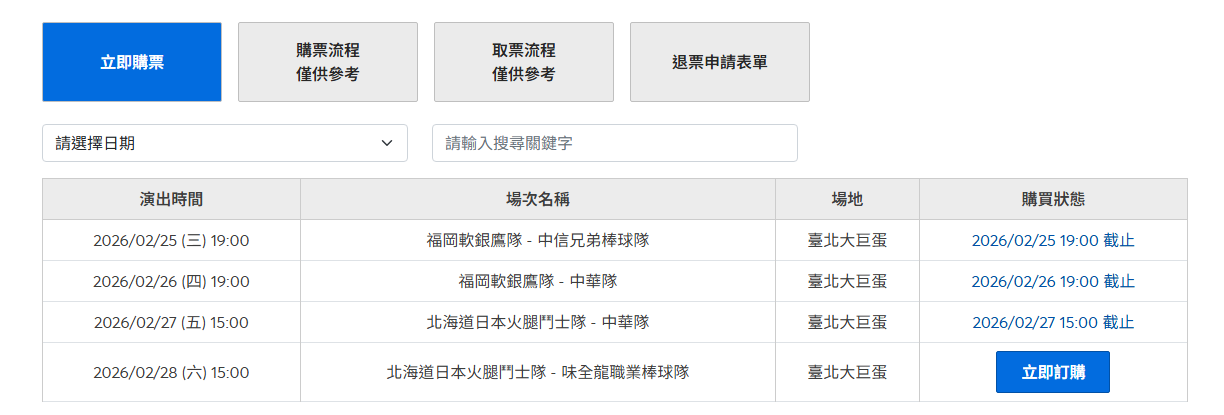
Event list page: Buy Tickets tab and Order Now button (click to enlarge) - Performance order: set which event to buy from top to bottom. Enter 1 for the first; if the number exceeds the list, the last event is selected.
- Ticket quantity: set the default quantity.
Advanced functions
- Pause/resume: click the button at the top right of the panel to temporarily disable automation.