
Overall flow
Remember four stages: event page → coming soon (configure menu) → queue → seat selection. Each section below has screenshots.
Detailed steps and settings
Click titles to expand/collapse. Read from top to bottom.
Main menu fields (refer to the seat-selection example below):
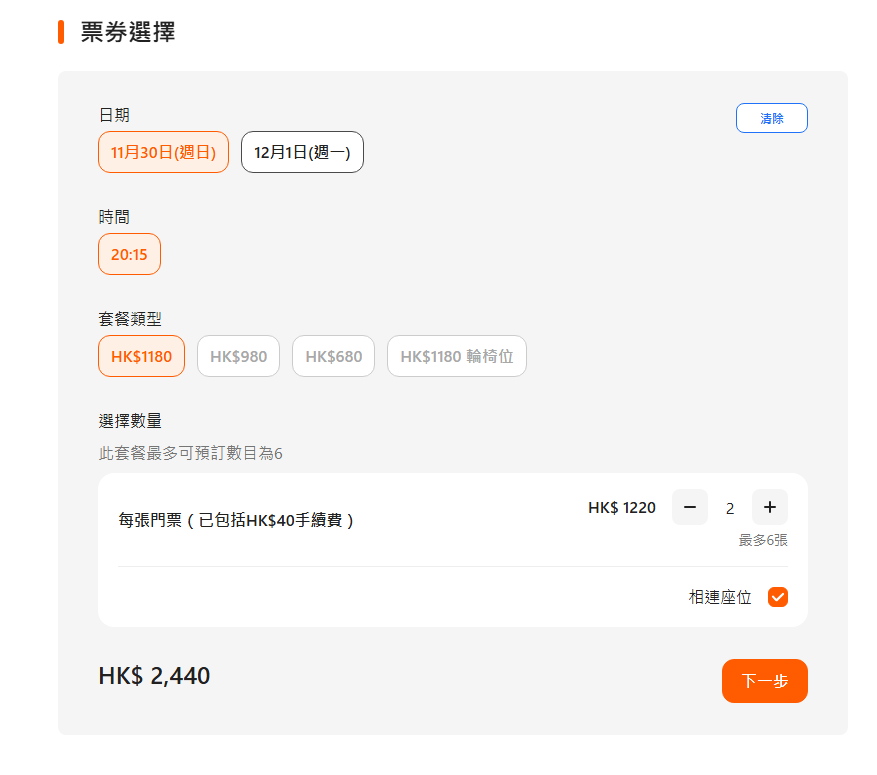
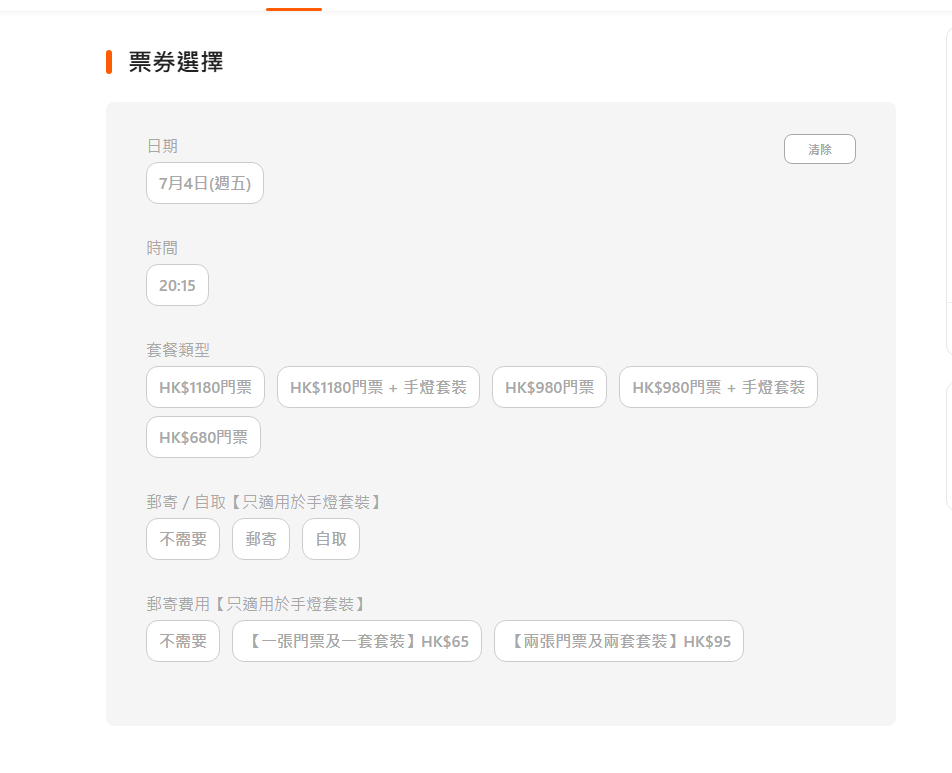
- Date option / time option:Enter the option number. For example, 1 means the first item. Enter 0 if you want to choose manually.
- Package type option:The price/package type, such as $1180 / $980 / $680. The number means the position from left to right.
- Shipping method / shipping fee:If the event has physical tickets or packages, the BOT selects the configured option. Enter 0 if not needed.
- Quantity:Pre-fill the number of tickets. In strict mode, if fewer seats are left than requested, it errors instead of reducing quantity.
- Require adjacent seats:When checked, the system prioritizes adjacent seats.
- Skip wheelchair/obstructed-view options:Automatically avoids wheelchair and obstructed-view areas.
- Member code/number:If the event requires a member number, the BOT fills it automatically in the verification form.
- Target time:Set the official Klook sale time, for example 12:00.
Refer to the seating/options screenshots to map option numbers. Extra values are fine; use 0 for items that do not exist.
- Stops at seat selection after successful entry
When queueing completes and the purchase flow opens, the system goes to seat selection and the BOT stops on the seat map.
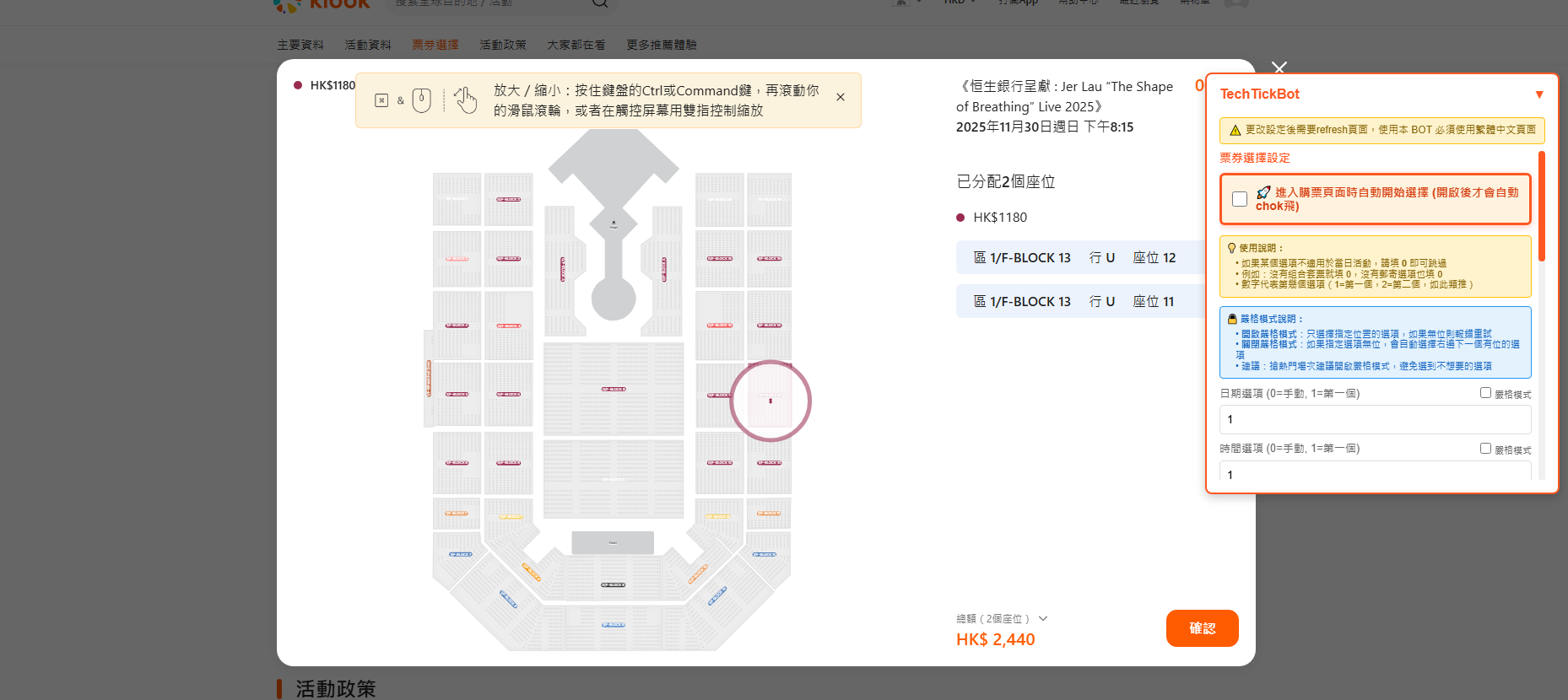
If you dislike the assigned seats, you can refresh manually to try again, but keep frequency low to avoid abnormal behavior detection.
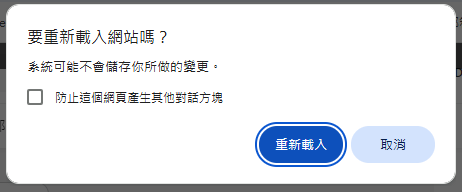
If you see a Reload website prompt, it means you manually interrupted while the BOT was retrying.