
TechTickBot · Mobile setup
Mobile and tablet installation guide
Choose your device and follow the steps to set up the BOT.
iPhone / iPad
Focus Browser installation guide
Use Focus Browser on iPhone and iPad for every supported TechTickBot mobile ticketing site.
Get Focus Browser from the App Store01 — 05
Step-by-step carousel
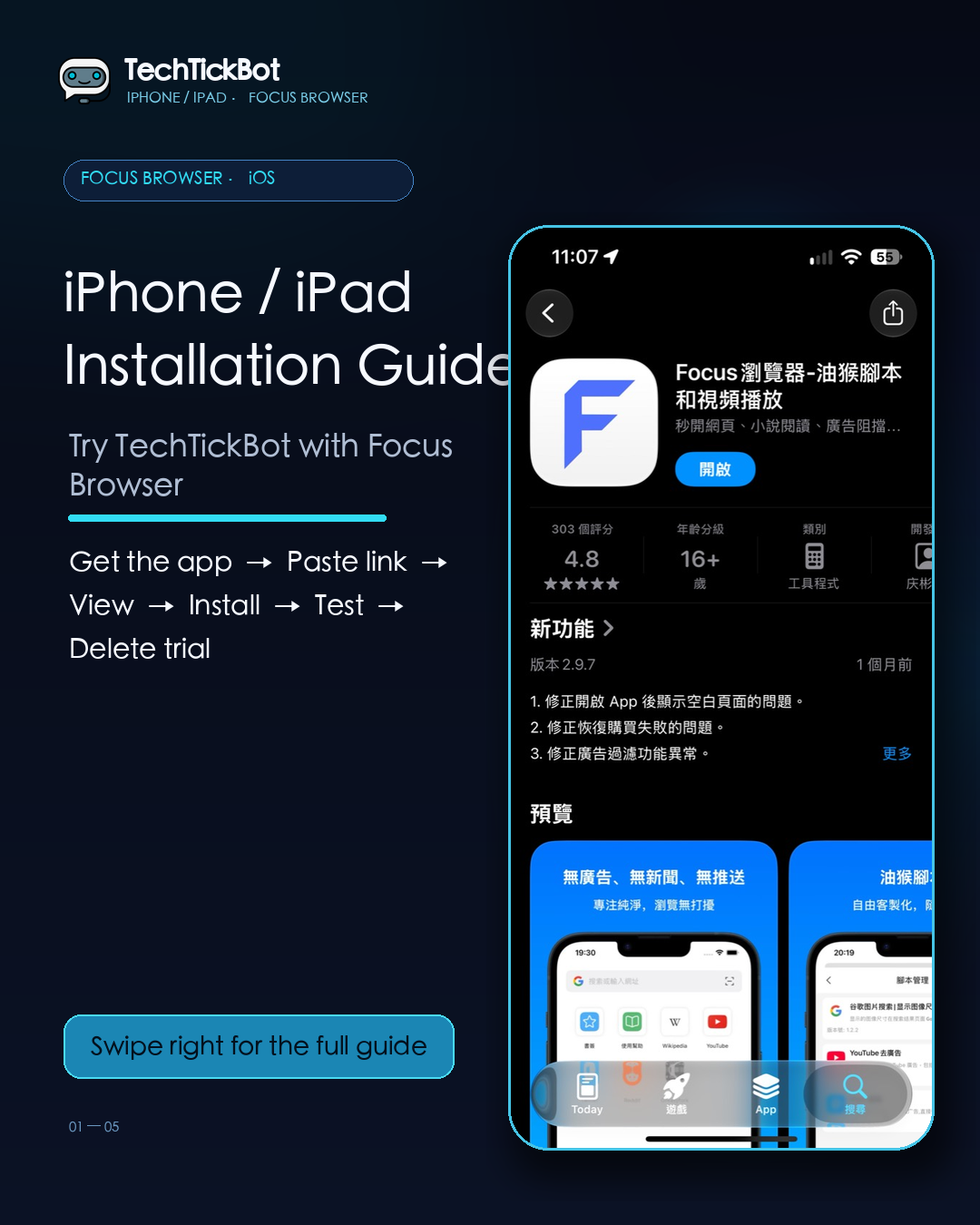
Swipe left or right, or use the arrows and dots.
Full installation steps
- 1
Download and open Focus Browser
Install “Focus Browser” from the App Store. If you see the Privacy Notice on first launch, tap “Agree”.
Get Focus Browser from the App Store - 2
Open the free trial page
Tap “Install the TechTickBot test BOT”, or copy the trial short link shown on the page.
- 3
Paste the link into Focus
Paste the trial short link into the Focus Browser address bar and open it.
- 4
Tap “View” in the download prompt
Tap “View” to open the TechTickBot trial install page.
- 5
Tap “Install”
When Focus asks whether to install the detected file, tap “Install”.
- 6
Test on a supported site
Test on any supported TechTickBot ticketing site. “Test install successful” or a TechTickBot running notice confirms it worked.
- 7
Delete the test version
In Focus Browser, tap the three-line menu at bottom right → JS Scripts → TechTickBot Trial. Swipe left and tap “Delete”. You can then install the full version.